The front page of the website is where first impressions are gained and sometimes this gets special attention in terms of adding background colours to sections or displaying photographs in a wider format. These aspects are not limited to the front page, but that is where they are most often used.
Using Containers
Most WordPress blocks are self-contained items such as paragraphs and headers. You can already change the background colour of these blocks in the block style section, e.g. for a paragraph:
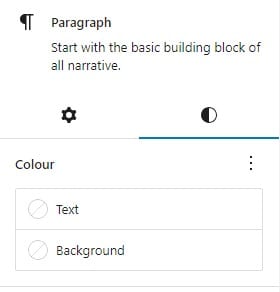
But that only colours the immediate background with no additional margin and certainly not to the full screen width. To do that we need to put the paragraph block within a container block, which we can then adjust separately.
In the block editor, add a Container block, and then add your paragraph block inside the container. The container block has padding and margin settings as well as options to change the background to an image or a colour.


Padding is additional area outside the paragraph blocks which is also coloured. Margin is additional whitespace above and below the block in case you want to space it away from the surrounding blocks. Inside max width represents the widest area available to put content into, regardless of how width the screen is.
This brings us to another property of most blocks, which we will use to make the container the full width of the screen, available from the container floating menu above the block. Here you can select wide width or full width.
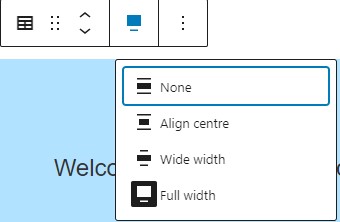
The container background will be used out to the width you choose for the container block, in this case the full page width. The paragraph block sits inside the container, but is not full width because we constrained the width available to it using container max width.
Viewing Page Structure
Using nested blocks is very useful, but it is not always easy to see where you are. The document overview button up in the top left shows you how the page is structured and also allows you to drag content around using your mouse.
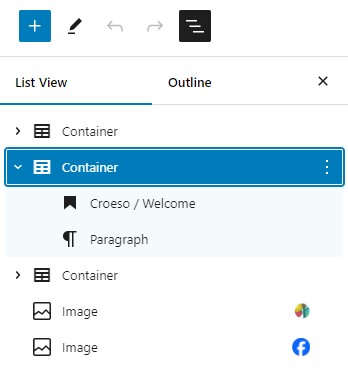
Page or Post Grid
If you use posts to show news items then you may well want to use the Post and Page Grid feature to display your posts in an attractive format. This works best when you have a good image to display with each post – images always grab the attention far more than plain text.
When you add the grid you can choose to display posts, either all posts or posts in a specific category, or you can select individual pages to show in the grid.
The block settings allow you to choose what is shown for each item. sometimes you will want just the picture and title and sometimes you’ll want the start of the text.
The image displayed here is the one associated with the particular page or post as the featured image. You can select this on the target page.
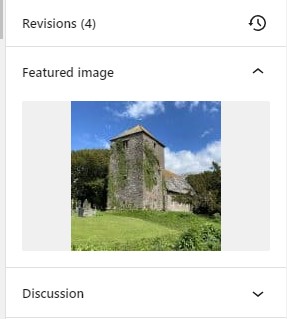
It might seem counter-intuitive to have the image set here rather than within the grid itself, but remember that when the grid is displaying posts it always shows the newest posts, so when you create a new post you set the featured image at that time and it is displayed on the front page automatically without you having to update the front page separately.
« Editing Content (Classic Editor) Up The Media Library »